Experiment 04
Association Rule Mining in WEKA
Aim
To understand and implement Association Rule Mining using the WEKA data mining tool.
Procedure
Step 1: Prepare the Dataset
- Format: CSV or ARFF (ARFF is preferred for WEKA).
- The dataset should contain nominal (categorical) attributes.
- Example shopping dataset:
| Milk | Bread | Butter |
|---|---|---|
| Yes | Yes | No |
| Yes | Yes | Yes |
| No | Yes | Yes |
| Yes | No | Yes |
| No | Yes | No |
Save this file as basket.csv or basket.arff.
Step 2: What is arff? how to create arff file ?
An ARFF file stands for Attribute-Relation File Format — it's a text file format used by WEKA to store datasets.
Structure of an ARFF File
An ARFF file has two main parts:
A. Header Section
Describes the dataset:
- @relation — name of the dataset.
- @attribute — each column (name + data type).
- Data types can be:
- numeric (numbers)
- string (text)
- {value1, value2,...} (nominal/categorical values)
- date (with optional format)
B. Data Section
- Starts with @data.
- Each row = one instance/record.
- Values are separated by commas.
Example
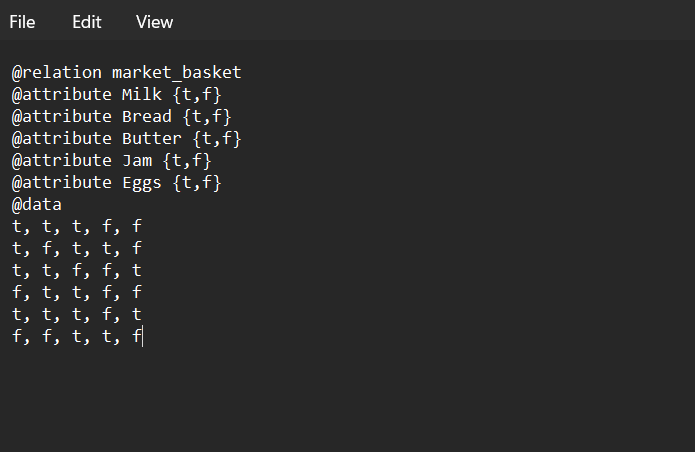
@relation market_basket

@attribute Milk {t,f}
@attribute Bread {t,f}
@attribute Butter {t,f}
@attribute Jam {t,f}
@attribute Eggs {t,f}

@data
t, t, t, f, f
t, f, t, t, f
t, t, f, f, t
f, t, t, f, f
t, t, t, f, t
f, f, t, t, f
Nominal attributes (categorical) must list all possible values in {}.
For numeric data:
@attribute Age numeric
- No spaces in attribute names (use underscores instead).
- Missing values are represented by a ?.
Step 3. How to Create an ARFF File
You can create it in any text editor.
- Open a text editor (Notepad, VS Code, etc.)..
- Write the header (@relation, @attribute lines).
- Add the @data line.
- Enter your dataset values row-by-row.
- Save the file with .arff extension (e.g., basket.arff).
- Load it into WEKA.
Step 4: Load the Dataset in WEKA
- Open WEKA GUI Chooser → Explorer.
- Click 'Open file' → select your basket.arff dataset.
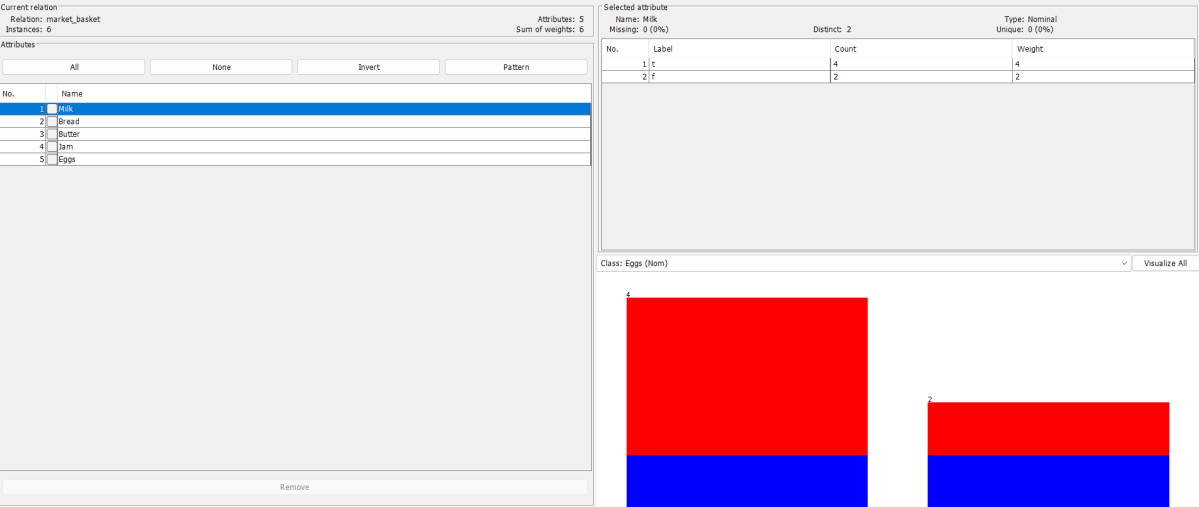
- View attributes and instances under the Preprocess tab.
Step 5: Run the Apriori Algorithm
- Go to the Associate tab.
- From the list of algorithms, choose: weka.associations.Apriori.
- Click 'Start' to run the algorithm.
- Observe the generated association rules in the result panel.
Step 6: Interpret the Results
Example Output Rule:
Bread=Yes ⇒ Butter=Yes conf:(0.75)
This means when 'Bread' is purchased, 'Butter' is also purchased 75% of the time.
Output
Result
The experiment was successfully executed, and the expected output was obtained using WEKA.