Experiment 01
Loading and Exploring Data in WEKA
Aim
To perform loading and exploring data in weka using WEKA tool.
Procedure
Step 1: Start WEKA
- Launch WEKA by double-clicking the WEKA icon or executing the command.
Step 2: Open the Explorer
- Click on "Explorer" (the first option in the GUI Chooser).
Step 3: Load a Dataset
- In the Explorer window, click the "Open file" button.
- Navigate to the folder where your dataset is located (e.g., weather.arff or any .arff, .csv file).
- Select the file and click Open.
WEKA supports formats like:
.arff (Attribute-Relation File Format – native to WEKA)
.csv (Comma-Separated Values)
.xrff (XML-based ARFF)
.json, .bsi (in newer versions)
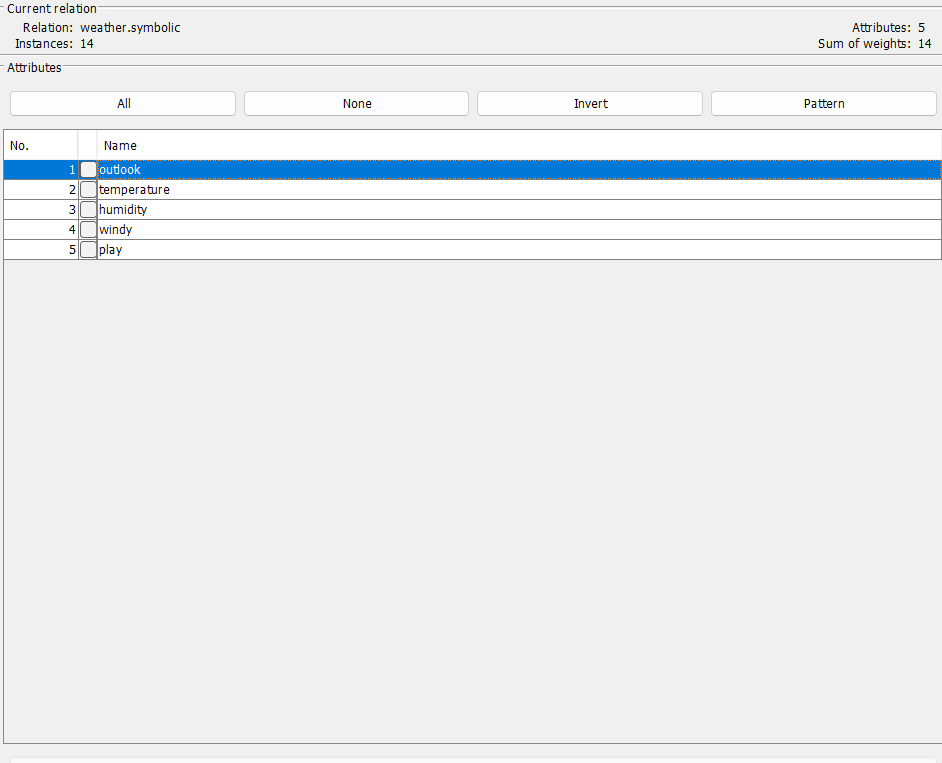
Step 4: View Dataset Summary
- After loading, you will see:
- The relation name (dataset title).
- Number of instances (rows of data).
- Number of attributes (columns or features).
- A list of attributes on the left.
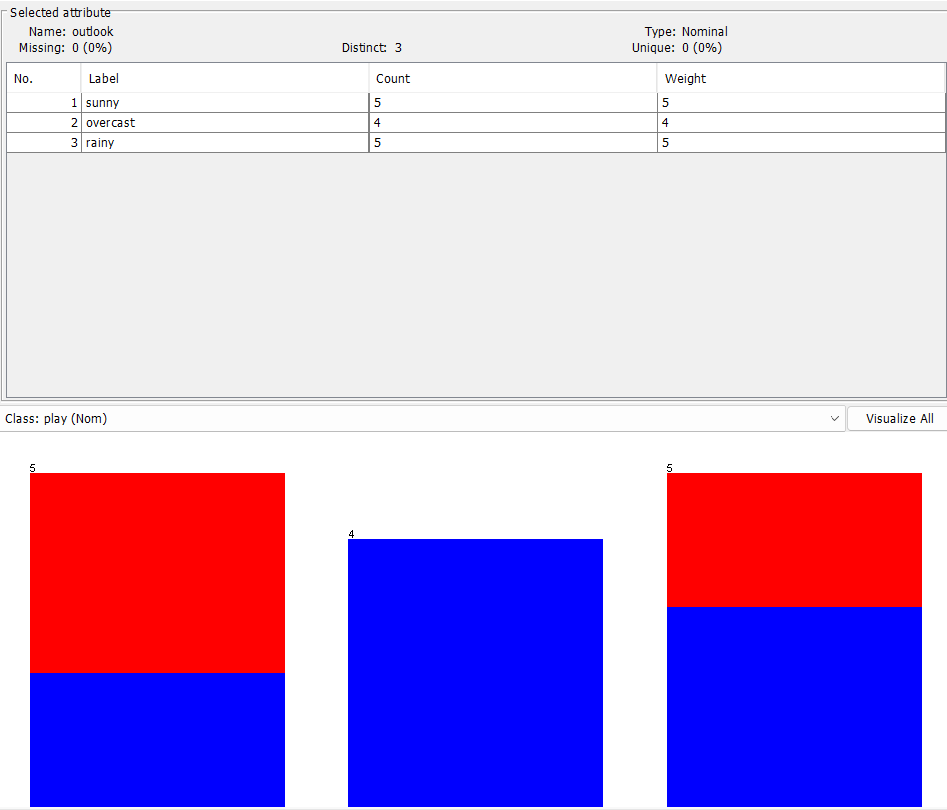
Step 5: Explore Individual Attributes
- Click on an attribute from the list on the left.
- The right pane shows:
- Histogram for the selected attribute.
- Frequency count for categorical attributes.
- Mean, StdDev, Min, Max for numeric attributes.
You can visually inspect class balance, missing values, and value distributions here.
Step 6: Explore Data Preprocessing Options (Optional)
- Use the "Filter" option to:
- Normalize or standardize data
- Replace missing values
- Convert nominal to numeric attributes
- Remove or select specific attributes
- Click Choose under "Filter" to apply a transformation.
Step 7: Save the Modified Dataset (Optional)
Click Save to export the preprocessed dataset to .arff or .csv.
Output
Result
The experiment was successfully executed, and the expected output was obtained using WEKA.